> For the complete documentation index, see [llms.txt](https://docs.securepass.me/llms.txt). Markdown versions of documentation pages are available by appending `.md` to page URLs; this page is available as [Markdown](https://docs.securepass.me/documentation/securepass-authenticator-app-mobile/soft-token-totp.md).
# Soft-token (TOTP)
TOTP is the classic authenticator method: the app shows a six-digit code that changes every thirty seconds, and you type it in at sign-in. The code is generated on the phone from a shared secret, so it needs no network — the phone can be in flight mode and it will still be right.
Setting it up is different from the other methods in one important way. **The registration is done in the Self-Service Portal, not in the app.** The portal produces a QR code, and the app scans it.
{% stepper %}
{% step %}
## Open TOTP in the app
Open the app, go to **Auth Modes**, and select **Manage** on the **TOTP (Soft Token)** row.
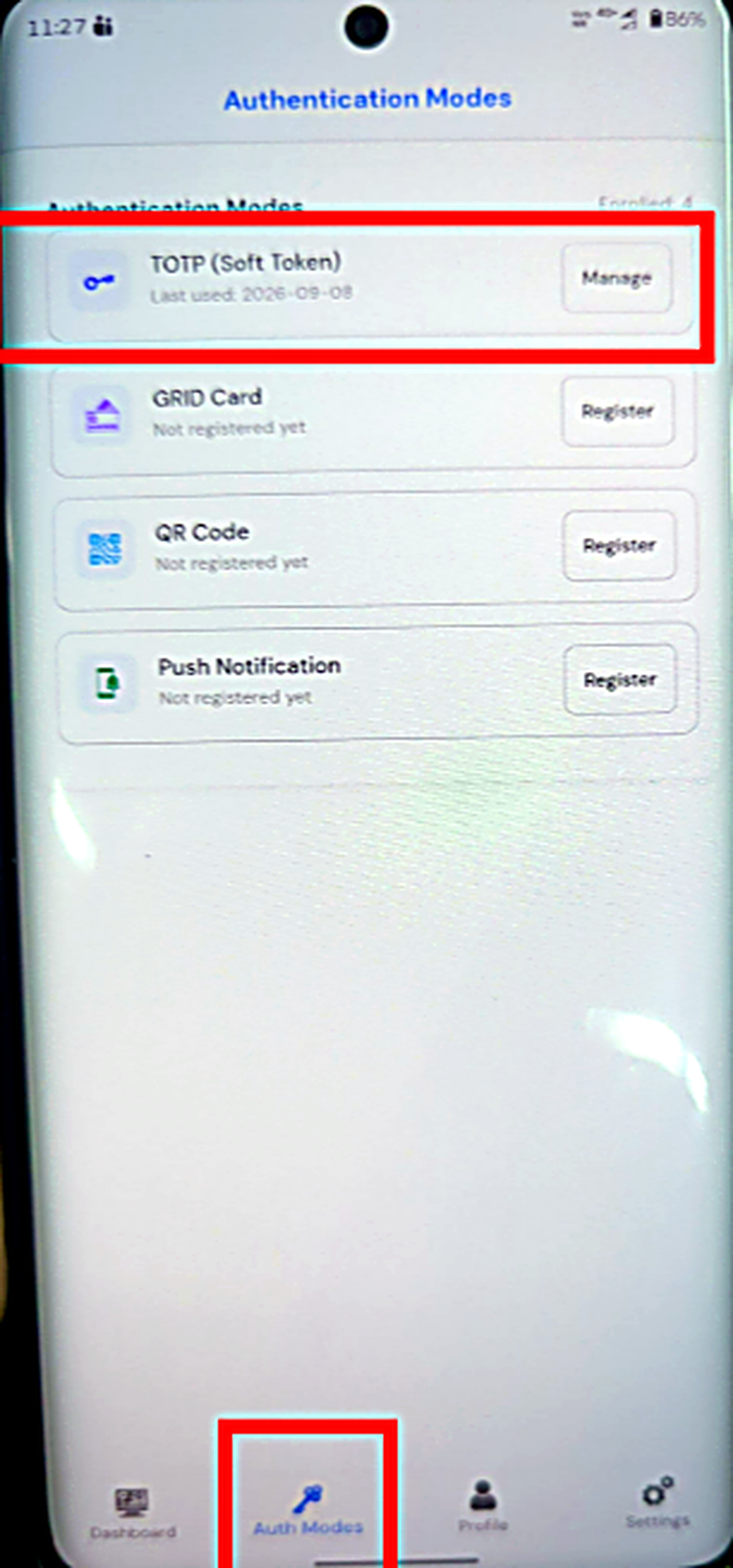 Until a token is set up, the screen reads **No TOTP Configured** and lists the three steps.
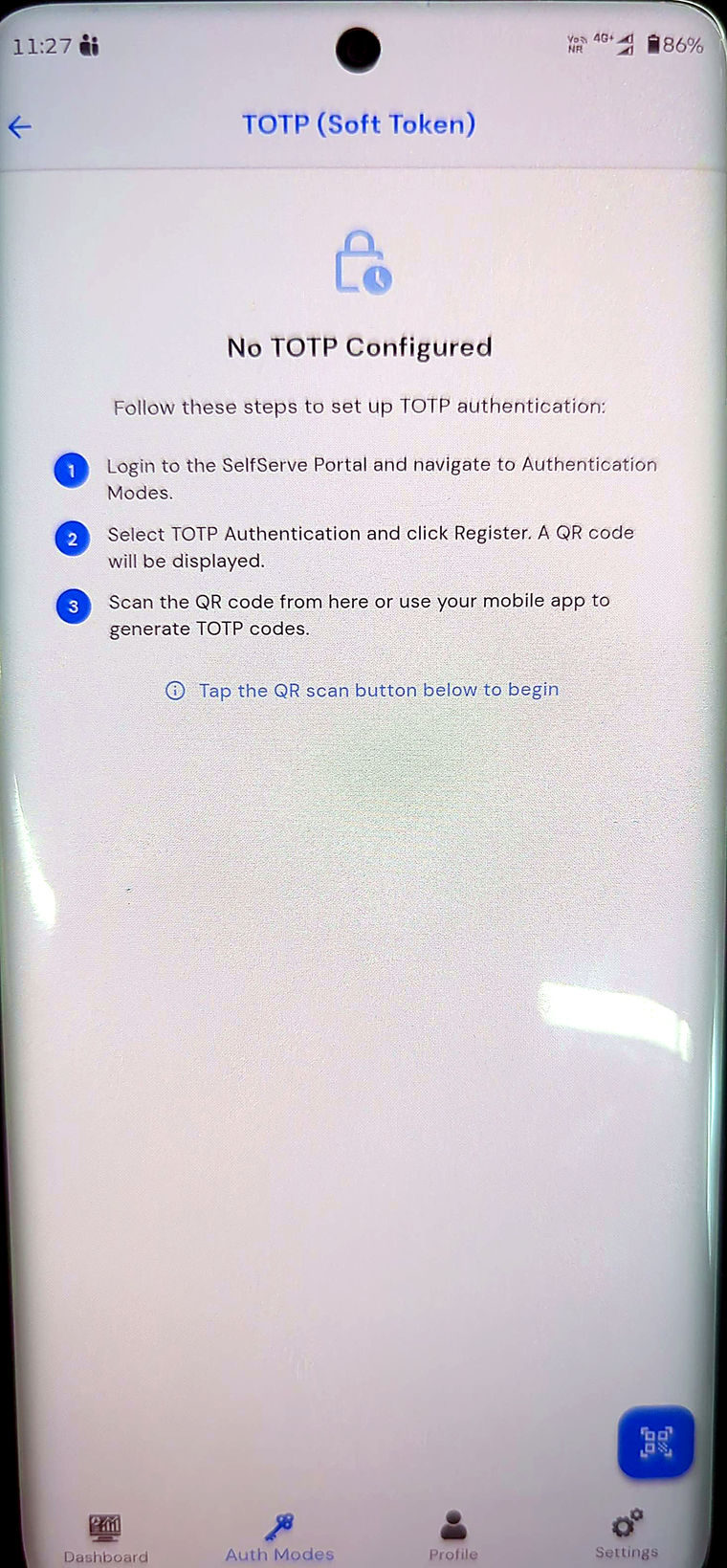 Leave it open — you come back here to scan.
{% endstep %}
{% step %}
## Generate the QR in the Self-Service Portal
On your computer, sign in to the **Self-Service Portal** and open **Authentication modes**.

Each method appears as a card with its status. Select the edit icon on **Authenticator (TOTP)**.
The TOTP Registration panel opens.

Applications are listed with a **Generate** button each, and the tabs across the top separate applications, public applications and systems. TOTP is registered **per application**, not once for everything — so generate for the one you are setting up.
Select **Generate** and a QR code appears, with the application's name above it and the secret written out beneath.
An application already set up shows **Registered**, with **View QR** to see the code again and **Regenerate** to replace it.
{% hint style="danger" %}
That QR code and the text string below it are the same secret in two forms. Anyone who photographs either can generate valid codes for your account indefinitely — the secret does not expire. Do not screenshot it, do not send it to anyone, and close the panel once you have scanned it. If it is ever seen by someone else, use **Regenerate**: it issues a new secret and the old one stops working.
{% endhint %}
{% endstep %}
{% step %}
## Scan it with the app
Back on the phone, tap the **QR scan** button on the No TOTP Configured screen and point the camera at the QR code on your monitor.
The app takes the secret and starts generating codes.
Leave it open — you come back here to scan.
{% endstep %}
{% step %}
## Generate the QR in the Self-Service Portal
On your computer, sign in to the **Self-Service Portal** and open **Authentication modes**.

Each method appears as a card with its status. Select the edit icon on **Authenticator (TOTP)**.
The TOTP Registration panel opens.

Applications are listed with a **Generate** button each, and the tabs across the top separate applications, public applications and systems. TOTP is registered **per application**, not once for everything — so generate for the one you are setting up.
Select **Generate** and a QR code appears, with the application's name above it and the secret written out beneath.
An application already set up shows **Registered**, with **View QR** to see the code again and **Regenerate** to replace it.
{% hint style="danger" %}
That QR code and the text string below it are the same secret in two forms. Anyone who photographs either can generate valid codes for your account indefinitely — the secret does not expire. Do not screenshot it, do not send it to anyone, and close the panel once you have scanned it. If it is ever seen by someone else, use **Regenerate**: it issues a new secret and the old one stops working.
{% endhint %}
{% endstep %}
{% step %}
## Scan it with the app
Back on the phone, tap the **QR scan** button on the No TOTP Configured screen and point the camera at the QR code on your monitor.
The app takes the secret and starts generating codes.
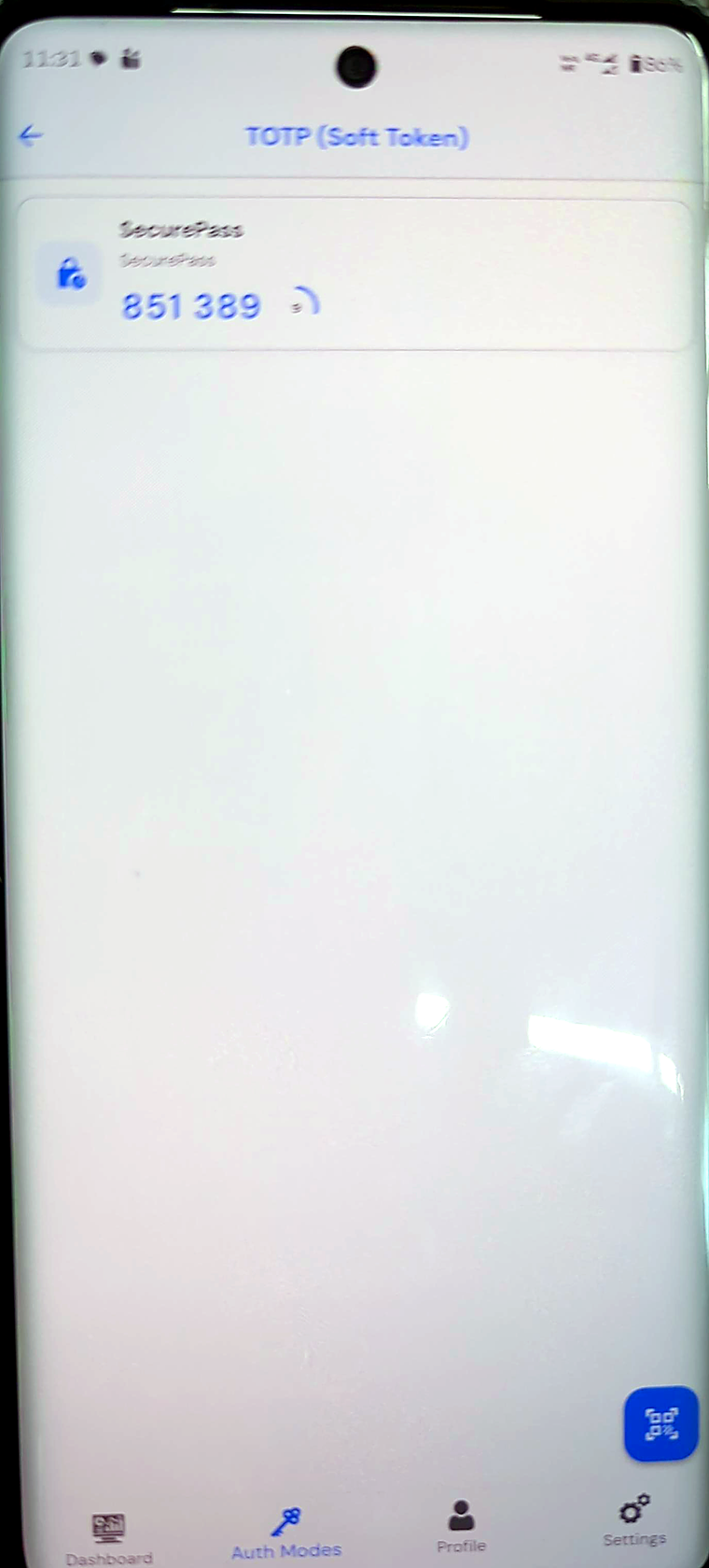 The screen shows the application name, the current six-digit code, and a countdown ring. When the ring runs out, the code changes.
{% endstep %}
{% step %}
## Signing in with TOTP
Start signing in as usual. At the second-factor screen, select **More Login Options**.

Choose **Authenticator (TOTP)**.

Read the current code from the app and enter it.

Select **Authenticate** and you reach the Dashboard

{% endstep %}
{% endstepper %}
The screen shows the application name, the current six-digit code, and a countdown ring. When the ring runs out, the code changes.
{% endstep %}
{% step %}
## Signing in with TOTP
Start signing in as usual. At the second-factor screen, select **More Login Options**.

Choose **Authenticator (TOTP)**.

Read the current code from the app and enter it.

Select **Authenticate** and you reach the Dashboard

{% endstep %}
{% endstepper %}