> For the complete documentation index, see [llms.txt](https://docs.securepass.me/llms.txt). Markdown versions of documentation pages are available by appending `.md` to page URLs; this page is available as [Markdown](https://docs.securepass.me/documentation/securepass-authenticator-app-mobile/registration-and-first-factor-setup.md).
# Registration & First-Factor Setup
The SECUREpass Authenticator is one app covering several sign-in methods — time-based codes, push approvals, GRID card and QR scan. Before any of them can be used, the app has to be registered to you and given a first factor of its own.
Registration takes four screens and a few minutes. You need the email address your organisation registered you with, and access to it.
{% stepper %}
{% step %}
## Register the app
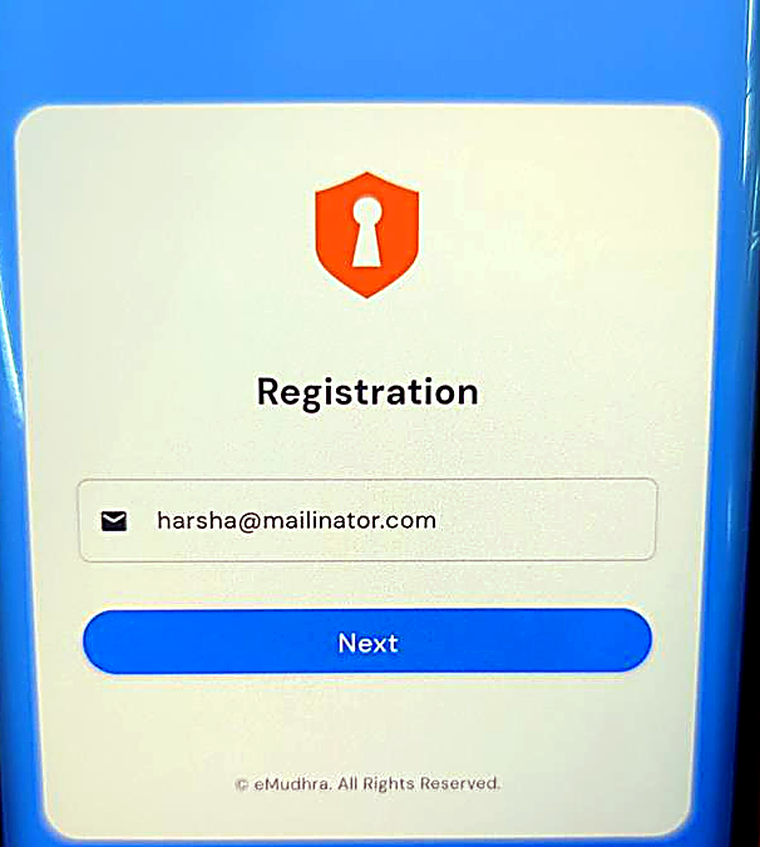
Open the app. It opens on **Registration**.
Enter your email ID and select **Next**.
 {% hint style="info" %}
Use the address your IT team registered — the one you sign in to SECUREpass with. Another address will not be recognised.
{% endhint %}
{% endstep %}
{% step %}
## Verify the one-time code
A one-time code is sent to that address. The screen shows it partly masked, so you can confirm it went where you expected.
Enter the code and select **Submit OTP**.
{% hint style="info" %}
Use the address your IT team registered — the one you sign in to SECUREpass with. Another address will not be recognised.
{% endhint %}
{% endstep %}
{% step %}
## Verify the one-time code
A one-time code is sent to that address. The screen shows it partly masked, so you can confirm it went where you expected.
Enter the code and select **Submit OTP**.
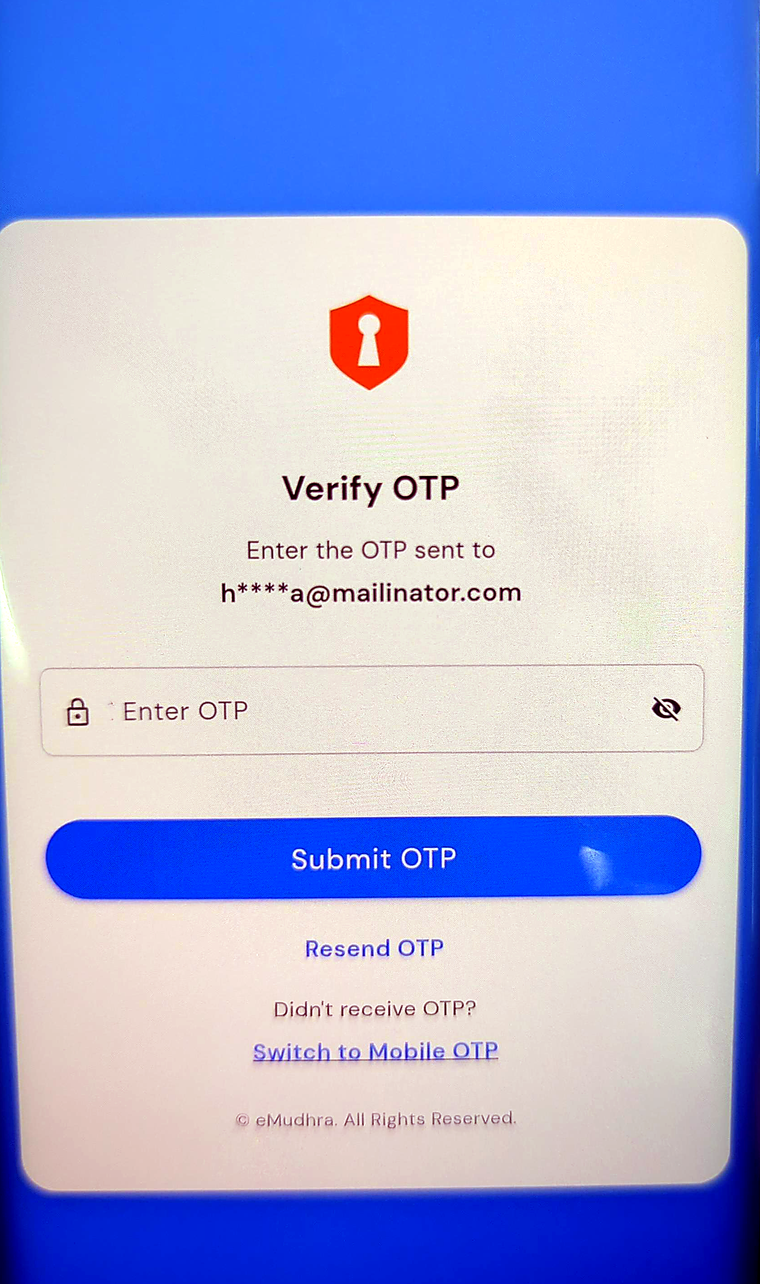 If nothing arrives, **Resend OTP** sends another. **Switch to Mobile OTP** sends the code to your registered mobile number instead, which is worth trying when email is slow or unreachable.
{% endstep %}
{% step %}
## Create your PIN
The app greets you by name and asks you to secure it.
Enter a PIN, confirm it, and select **Register**.
If nothing arrives, **Resend OTP** sends another. **Switch to Mobile OTP** sends the code to your registered mobile number instead, which is worth trying when email is slow or unreachable.
{% endstep %}
{% step %}
## Create your PIN
The app greets you by name and asks you to secure it.
Enter a PIN, confirm it, and select **Register**.
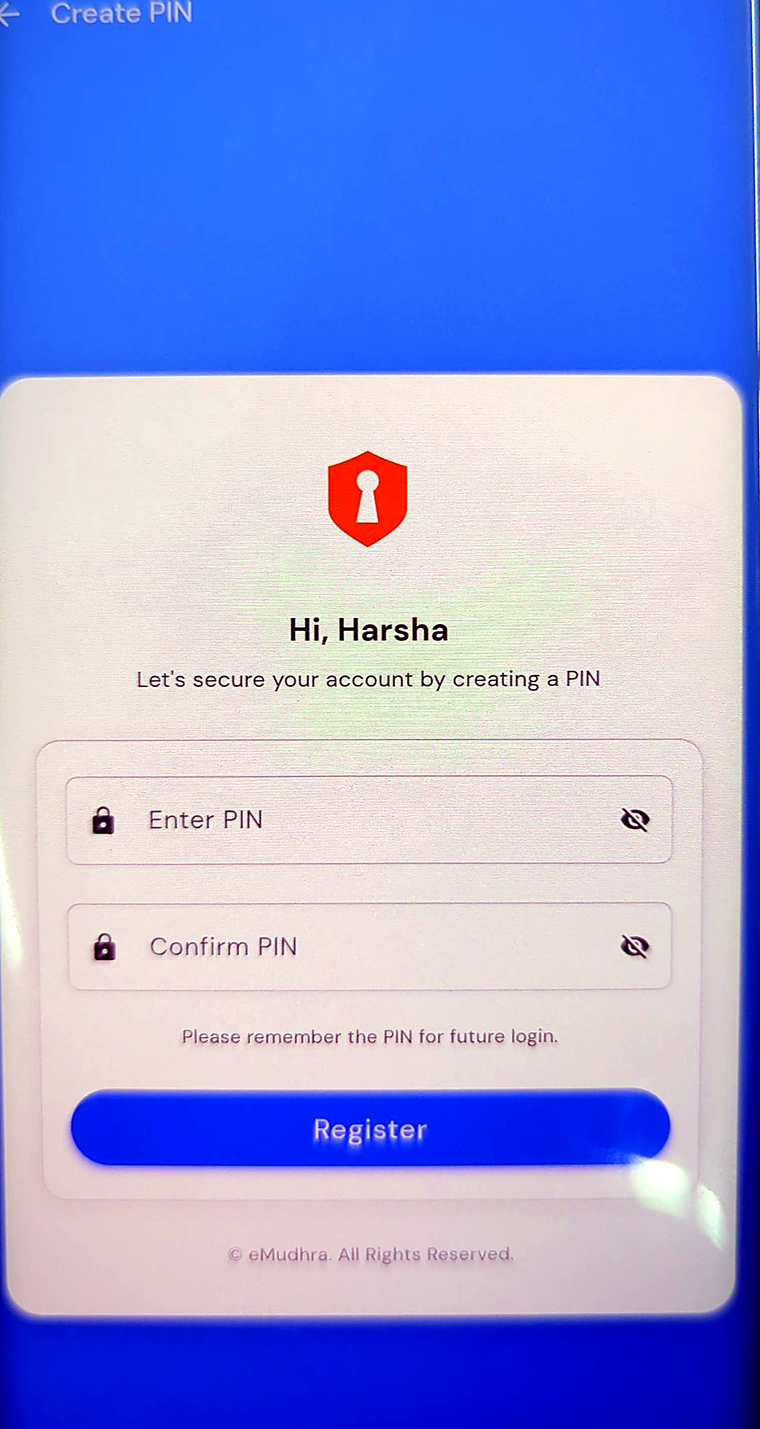 This PIN unlocks the app itself. It is separate from your SECUREpass password and separate from any codes the app generates — it is what stops someone using your authenticator if they pick up your phone.
Choose something you will remember. The app asks for it every time you open it.
{% endstep %}
{% step %}
## You are registered
Registration completes and the app opens on the dashboard.
This PIN unlocks the app itself. It is separate from your SECUREpass password and separate from any codes the app generates — it is what stops someone using your authenticator if they pick up your phone.
Choose something you will remember. The app asks for it every time you open it.
{% endstep %}
{% step %}
## You are registered
Registration completes and the app opens on the dashboard.
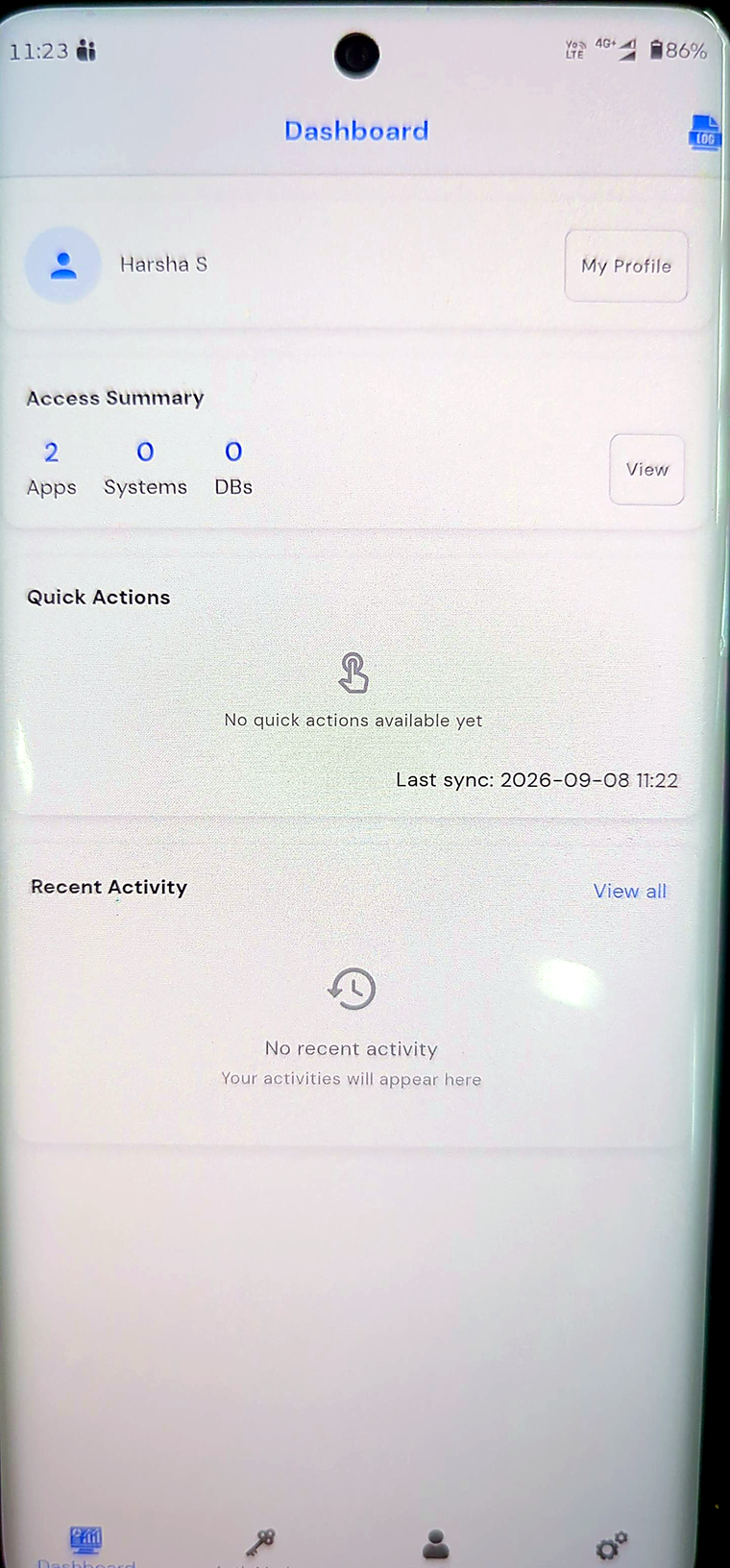 The dashboard is the app's home screen:
| Section | What it shows |
| --------------- | ---------------------------------------------------------------------------------------- |
| Access Summary | How many applications, systems and databases you can reach, with **View** for the detail |
| Quick Actions | Shortcuts to the things you use most |
| Recent Activity | Your recent authentications and app activity |
| Last sync | When the app last refreshed its data from SECUREpass |
Along the bottom are **Dashboard**, **Auth Modes**, **Profile** and **Settings**. **Auth Modes** is where the individual sign-in methods live — soft token, push, GRID and QR scan.
A newly registered app has an empty Recent Activity and no quick actions. Both fill in as you use it.
{% endstep %}
{% endstepper %}
## Next
The app is registered but no authentication method is set up yet. Choose the ones your organisation requires from **Auth Modes**, then enrol each in turn.
The dashboard is the app's home screen:
| Section | What it shows |
| --------------- | ---------------------------------------------------------------------------------------- |
| Access Summary | How many applications, systems and databases you can reach, with **View** for the detail |
| Quick Actions | Shortcuts to the things you use most |
| Recent Activity | Your recent authentications and app activity |
| Last sync | When the app last refreshed its data from SECUREpass |
Along the bottom are **Dashboard**, **Auth Modes**, **Profile** and **Settings**. **Auth Modes** is where the individual sign-in methods live — soft token, push, GRID and QR scan.
A newly registered app has an empty Recent Activity and no quick actions. Both fill in as you use it.
{% endstep %}
{% endstepper %}
## Next
The app is registered but no authentication method is set up yet. Choose the ones your organisation requires from **Auth Modes**, then enrol each in turn.