> For the complete documentation index, see [llms.txt](https://docs.securepass.me/llms.txt). Markdown versions of documentation pages are available by appending `.md` to page URLs; this page is available as [Markdown](https://docs.securepass.me/documentation/securepass-authenticator-app-mobile/qr-scan.md).
# QR scan
QR sign-in turns your phone into the second factor without you typing anything. The browser shows a code, you scan it with the app, and the sign-in completes.
It suits the case where push is awkward and codes are tedious — a shared or public machine, or a laptop you are signing in on while your phone is already in your hand. Unlike the GRID card it needs the phone online, because the app has to tell SECUREpass that the code was scanned.
## Register QR
{% stepper %}
{% step %}
### Open QR Code authentication
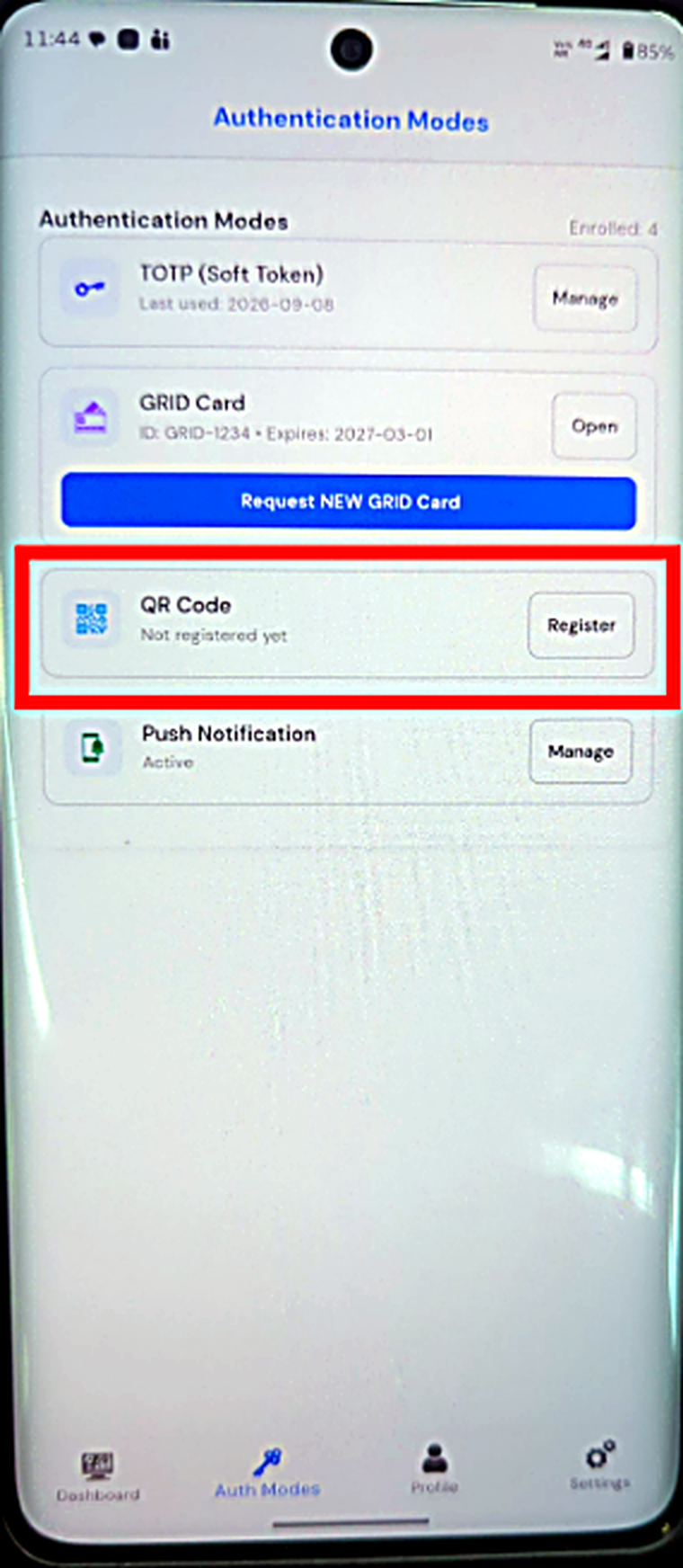
Open the app and go to **Auth Modes**. Find **QR Code** and select **Register**.
 {% endstep %}
{% step %}
### Confirm registration
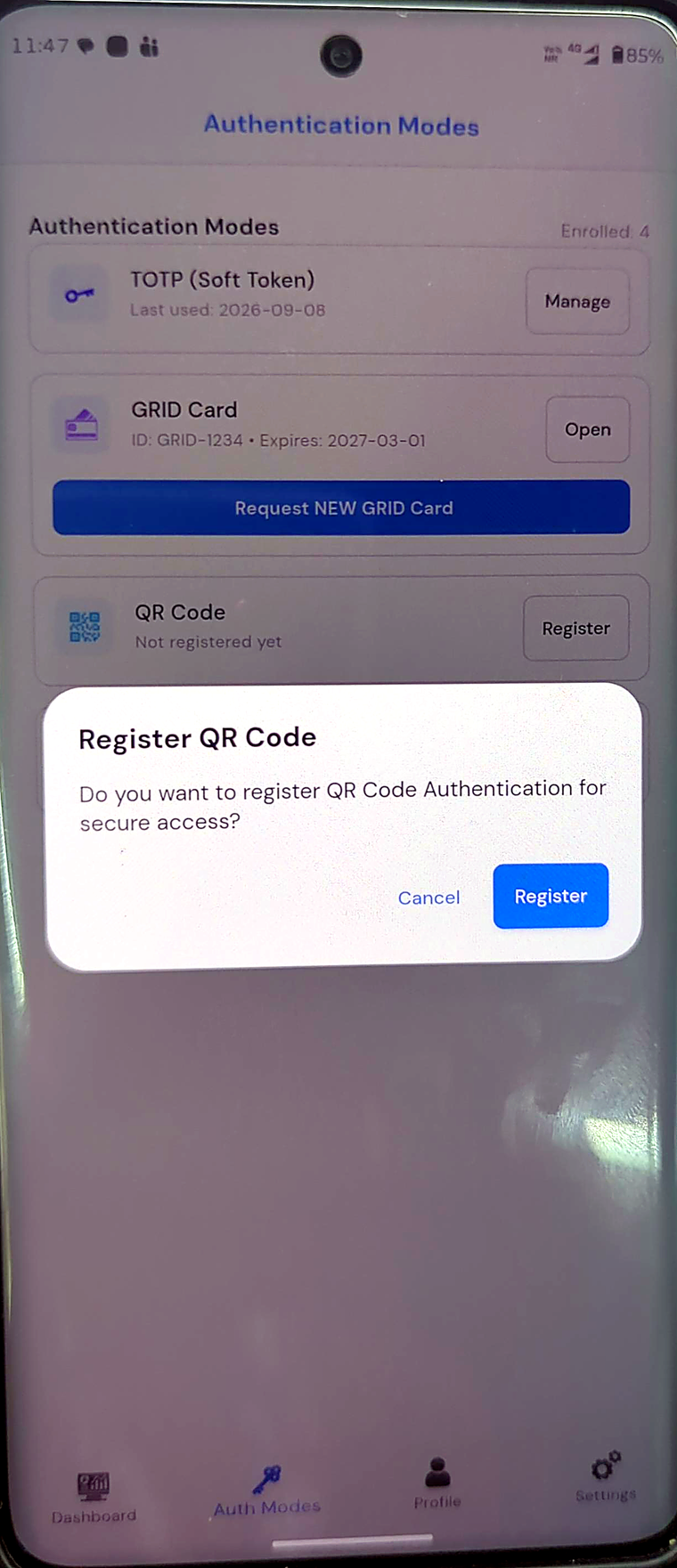
Confirm when the app asks whether to register QR Code authentication.
{% endstep %}
{% step %}
### Confirm registration
Confirm when the app asks whether to register QR Code authentication.
 {% endstep %}
{% step %}
### Start scanning
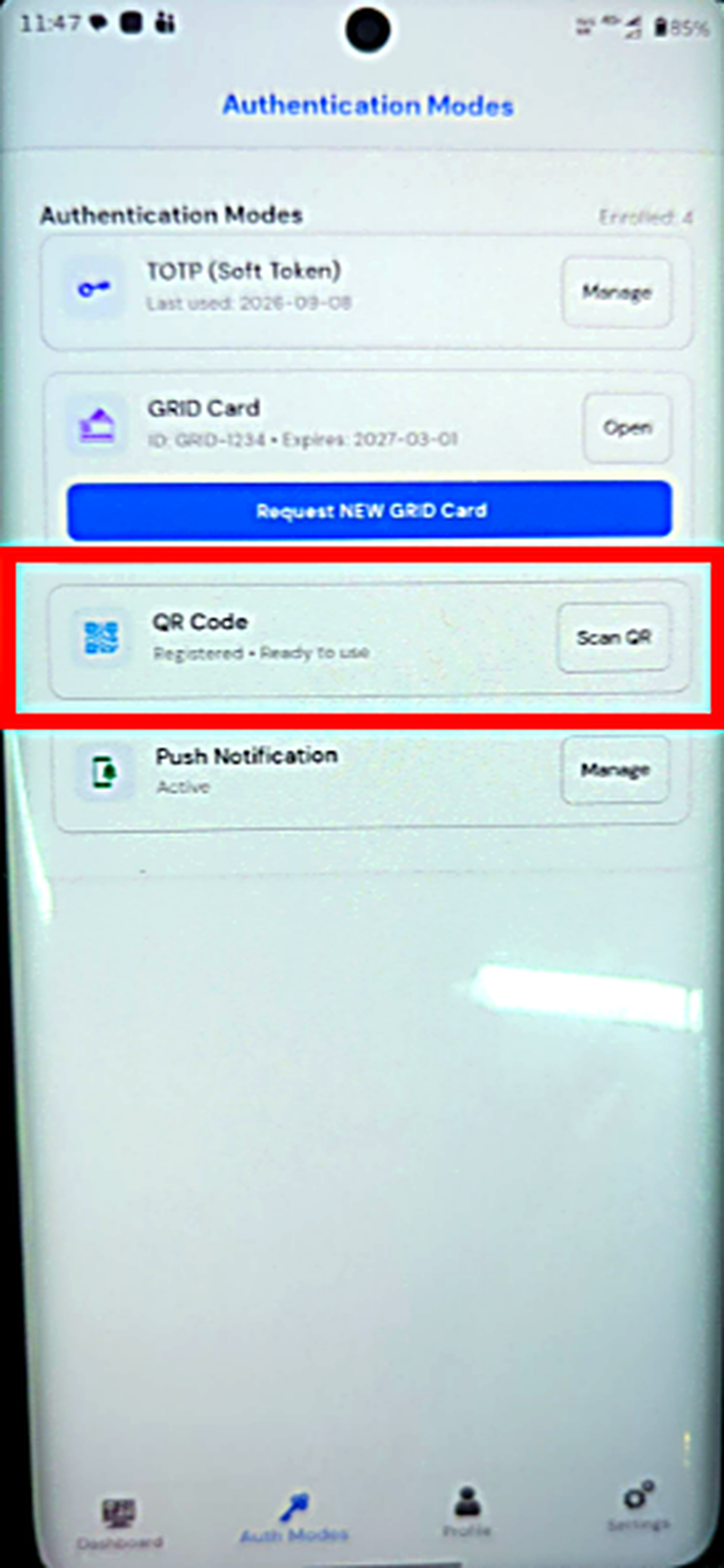
The row now reads **Registered · Ready to use**, and its button changes to **Scan QR** — which is how you start a scan from here in future.
{% endstep %}
{% step %}
### Start scanning
The row now reads **Registered · Ready to use**, and its button changes to **Scan QR** — which is how you start a scan from here in future.
 {% endstep %}
{% endstepper %}
## Signing in with QR
{% stepper %}
{% step %}
### Open more login options
Start signing in as usual. At the second-factor screen, select **More Login Options**.

{% endstep %}
{% step %}
### Choose QR Code
Choose **QR Code**.

{% endstep %}
{% step %}
### Scan the displayed code
The browser displays the code.

Each code belongs to that one sign-in attempt and expires shortly after it appears. If it lapses before you scan it, refresh the page for a new one.
{% endstep %}
{% endstepper %}
## Scan it
On the phone, open **Auth Modes** and select **Scan QR** on the QR Code row. The camera opens with a frame to line the code up in.
{% endstep %}
{% endstepper %}
## Signing in with QR
{% stepper %}
{% step %}
### Open more login options
Start signing in as usual. At the second-factor screen, select **More Login Options**.

{% endstep %}
{% step %}
### Choose QR Code
Choose **QR Code**.

{% endstep %}
{% step %}
### Scan the displayed code
The browser displays the code.

Each code belongs to that one sign-in attempt and expires shortly after it appears. If it lapses before you scan it, refresh the page for a new one.
{% endstep %}
{% endstepper %}
## Scan it
On the phone, open **Auth Modes** and select **Scan QR** on the QR Code row. The camera opens with a frame to line the code up in.
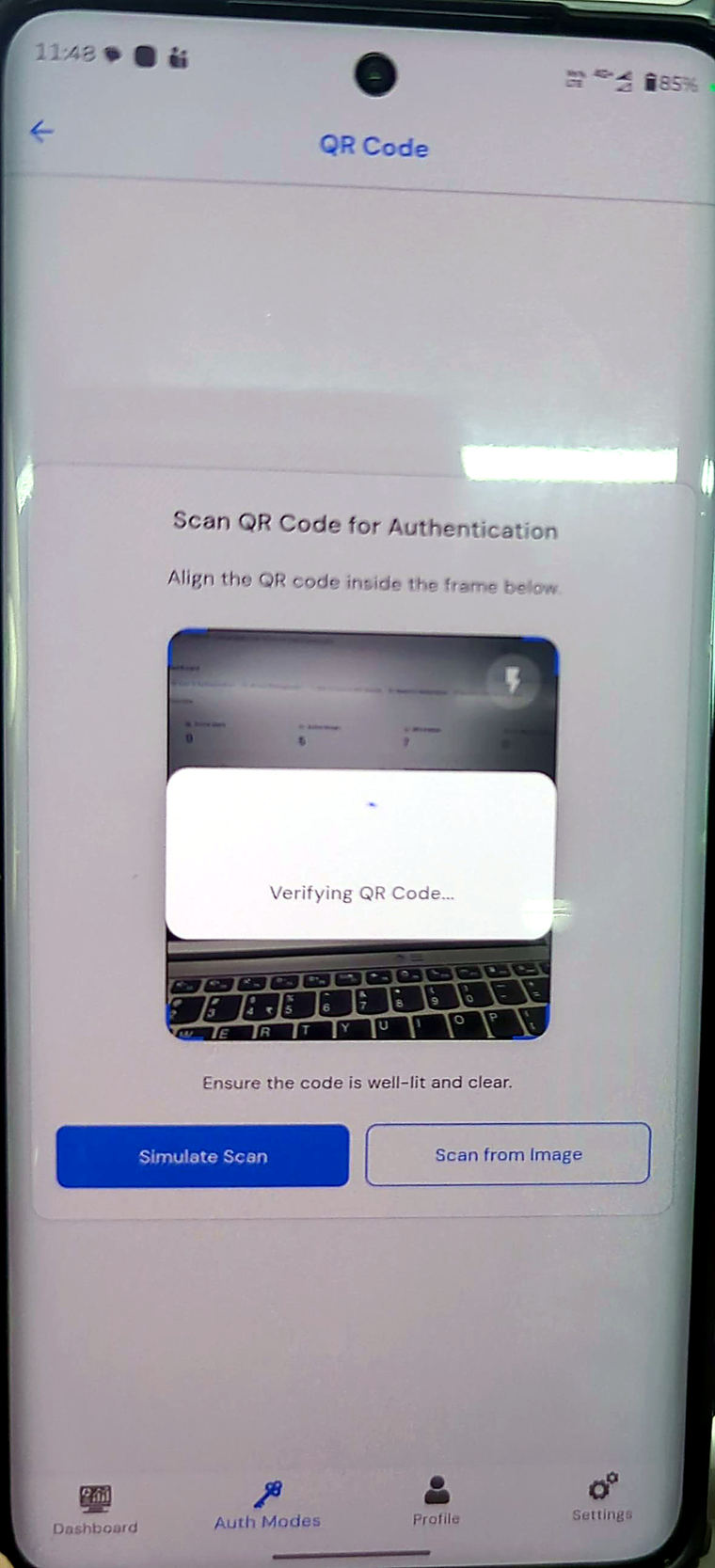 Hold the phone steady until the frame fills with the code — the app confirms with **Verifying QR Code…** once it has read it. Good, even light helps; a screen at low brightness or at a sharp angle is the usual reason a scan will not take.
**Scan from Image** is there for when the camera cannot be pointed at the code — signing in on the same phone, for instance. Save the code as an image and pick it from the gallery instead.
Once it verifies, the browser completes the sign-in on its own.

Hold the phone steady until the frame fills with the code — the app confirms with **Verifying QR Code…** once it has read it. Good, even light helps; a screen at low brightness or at a sharp angle is the usual reason a scan will not take.
**Scan from Image** is there for when the camera cannot be pointed at the code — signing in on the same phone, for instance. Save the code as an image and pick it from the gallery instead.
Once it verifies, the browser completes the sign-in on its own.
