> For the complete documentation index, see [llms.txt](https://docs.securepass.me/llms.txt). Markdown versions of documentation pages are available by appending `.md` to page URLs; this page is available as [Markdown](https://docs.securepass.me/documentation/securepass-authenticator-app-mobile/grid-card.md).
# GRID card
A GRID card is a personal grid of numbers. When you sign in, SECUREpass names a few coordinates — K3, H7, B6 — and you read the values off your card and type them in.
Two things make it useful. Nobody can answer the challenge without your card, and the coordinates change every time, so a value seen once is worthless the next time. And because the card is held in the app, it works **offline** — no signal, no data, no delivered code. That makes it the method to register for travel, for sites with no mobile coverage, and as the fallback when push and OTP cannot reach you.
## Register a GRID card
{% stepper %}
{% step %}
### Open GRID Card registration
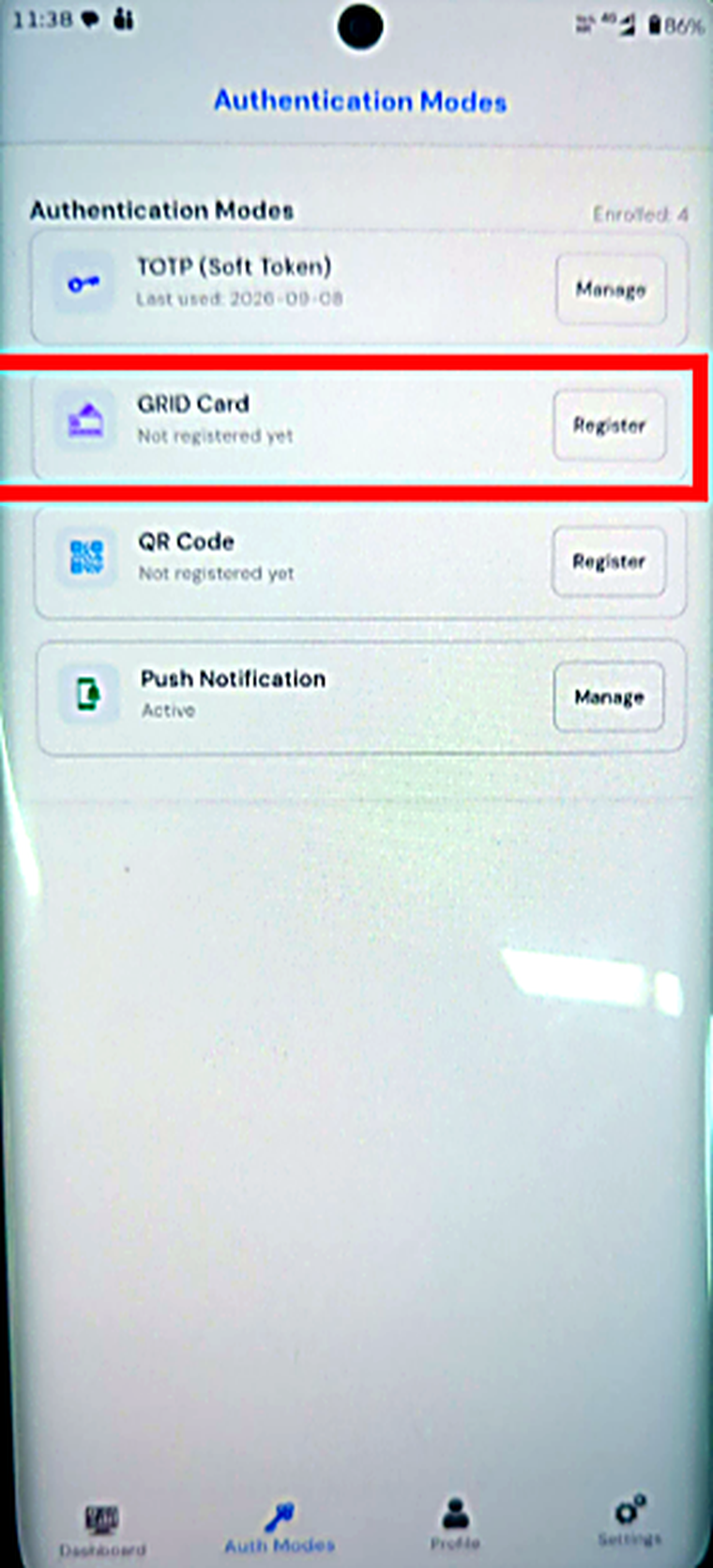
Open the app and go to **Auth Modes**. Find **GRID Card** and select **Register**.
 {% endstep %}
{% step %}
### Confirm registration
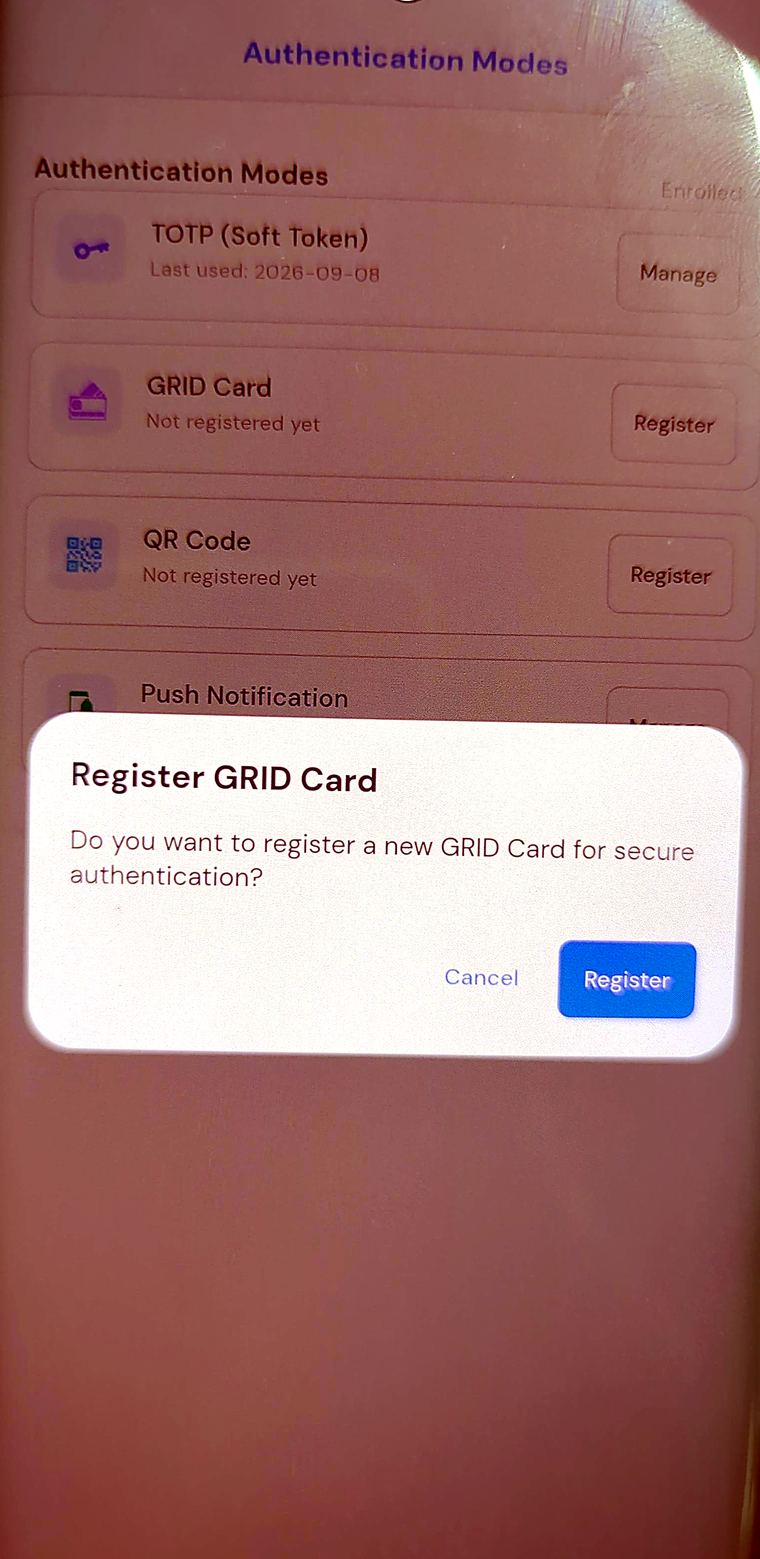
Confirm when the app asks whether to register a new GRID card.
{% endstep %}
{% step %}
### Confirm registration
Confirm when the app asks whether to register a new GRID card.
 {% endstep %}
{% step %}
### View the active card
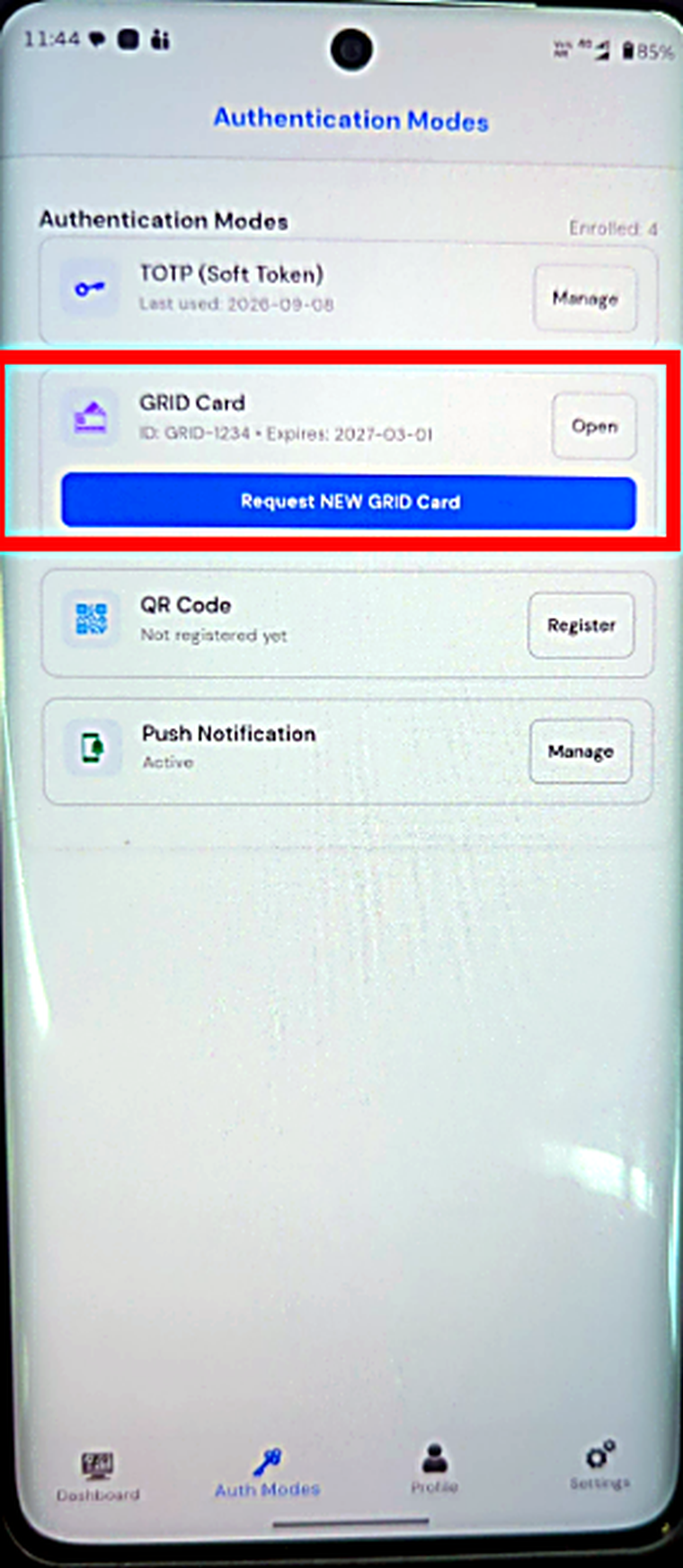
The row now reads **Active** and offers two actions — **Open** to view the card, and **Request NEW GRID Card** to replace it.
{% endstep %}
{% step %}
### View the active card
The row now reads **Active** and offers two actions — **Open** to view the card, and **Request NEW GRID Card** to replace it.
 {% endstep %}
{% endstepper %}
## Your card
Select **Open** to see it.
{% endstep %}
{% endstepper %}
## Your card
Select **Open** to see it.
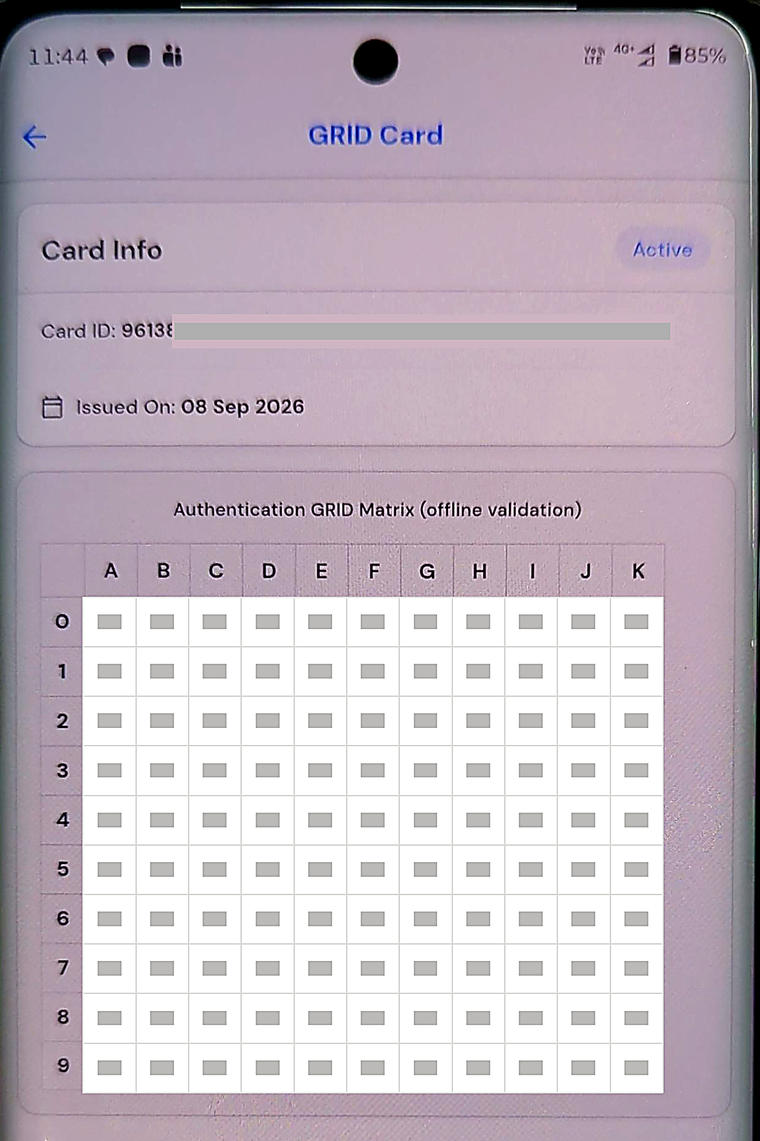 The card has a **Card ID**, an issue date, and the authentication matrix itself — columns A to K, rows 0 to 9, with a two-digit value in each cell. A coordinate like **K3** means column K, row 3.
{% hint style="warning" %}
**Caution**
The matrix is your credential. Anyone who photographs it can answer any challenge it is given. Do not screenshot it, do not share it, and do not print it and leave it near your desk. If it is ever seen by someone else, use **Request NEW GRID Card** immediately — the old matrix stops working the moment a new card is issued.
{% endhint %}
## Signing in with the GRID card
{% stepper %}
{% step %}
### Open more login options
Start signing in as usual. At the second-factor screen, select **More Login Options**.

{% endstep %}
{% step %}
### Choose Grid
Choose **Grid**.

{% endstep %}
{% step %}
### Enter the requested values
SECUREpass names three coordinates. Open your card in the app, read the value at each, and enter them in order.

{% endstep %}
{% step %}
### Authenticate
Select **Authenticate**. You are signed in.

{% endstep %}
{% endstepper %}
## Practical notes
**Read the labels, not the positions.** The three coordinates are different every sign-in. Entering yesterday's values into today's boxes is the most common mistake.
**Keep the app to hand.** The card lives in the app, so you need the phone — but not a network connection.
**Replacing the card.** **Request NEW GRID Card** issues a fresh matrix and retires the old one. Do it if the card may have been seen, and expect to use the new values from the next sign-in onward.
The card has a **Card ID**, an issue date, and the authentication matrix itself — columns A to K, rows 0 to 9, with a two-digit value in each cell. A coordinate like **K3** means column K, row 3.
{% hint style="warning" %}
**Caution**
The matrix is your credential. Anyone who photographs it can answer any challenge it is given. Do not screenshot it, do not share it, and do not print it and leave it near your desk. If it is ever seen by someone else, use **Request NEW GRID Card** immediately — the old matrix stops working the moment a new card is issued.
{% endhint %}
## Signing in with the GRID card
{% stepper %}
{% step %}
### Open more login options
Start signing in as usual. At the second-factor screen, select **More Login Options**.

{% endstep %}
{% step %}
### Choose Grid
Choose **Grid**.

{% endstep %}
{% step %}
### Enter the requested values
SECUREpass names three coordinates. Open your card in the app, read the value at each, and enter them in order.

{% endstep %}
{% step %}
### Authenticate
Select **Authenticate**. You are signed in.

{% endstep %}
{% endstepper %}
## Practical notes
**Read the labels, not the positions.** The three coordinates are different every sign-in. Entering yesterday's values into today's boxes is the most common mistake.
**Keep the app to hand.** The card lives in the app, so you need the phone — but not a network connection.
**Replacing the card.** **Request NEW GRID Card** issues a fresh matrix and retires the old one. Do it if the card may have been seen, and expect to use the new values from the next sign-in onward.