> For the complete documentation index, see [llms.txt](https://docs.securepass.me/llms.txt). Markdown versions of documentation pages are available by appending `.md` to page URLs; this page is available as [Markdown](https://docs.securepass.me/documentation/securepass-authenticator-app-mobile/dashboard-activity-logs-and-profile.md).
# Dashboard, Activity Logs & Profile
Beyond generating codes and approving sign-ins, the app is where you can see what you have access to, check what has been done in your name, and keep your own details up to date.
Four screens cover it: the dashboard, the activity log, your profile, and My Access.
## The dashboard
The dashboard opens when you start the app.
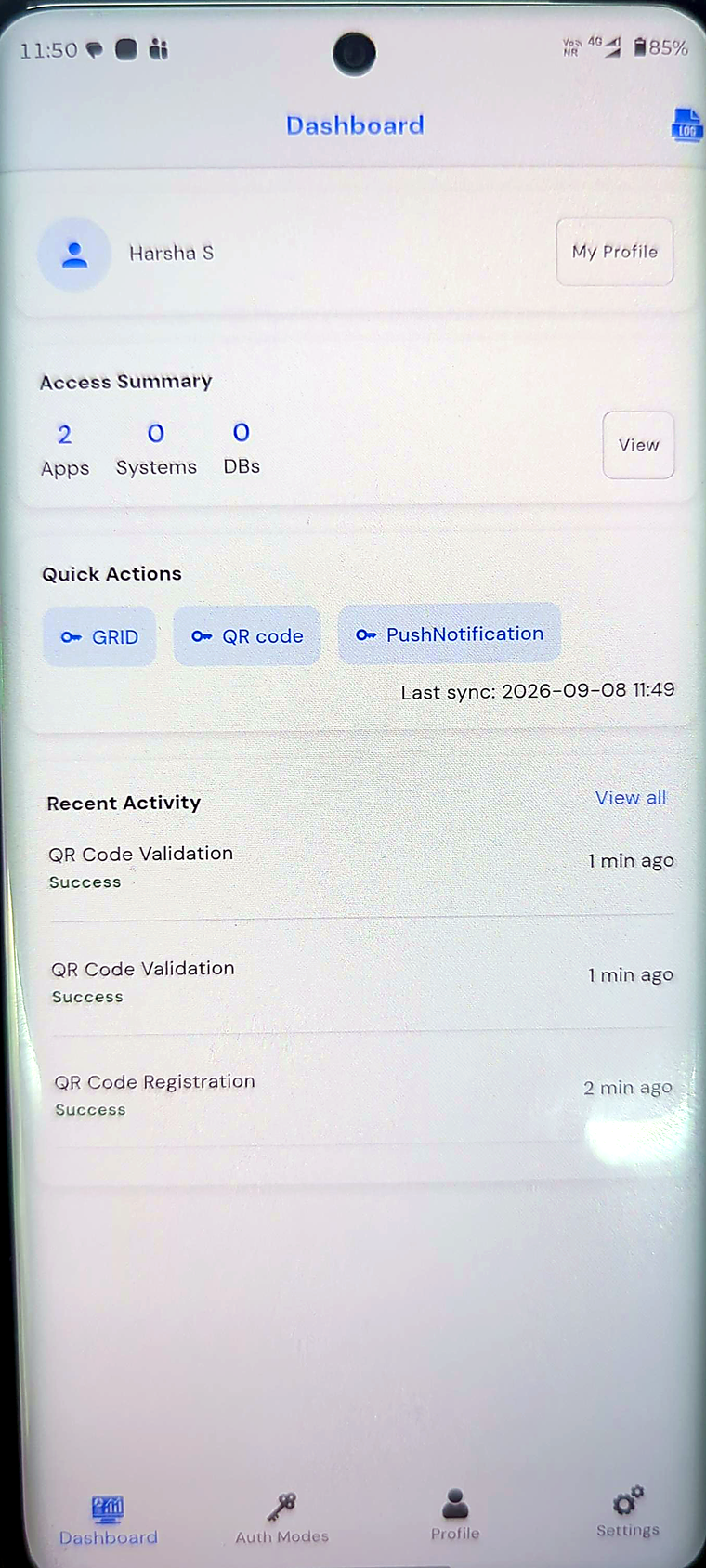 | Section | What it shows |
| --------------- | -------------------------------------------------------------------- |
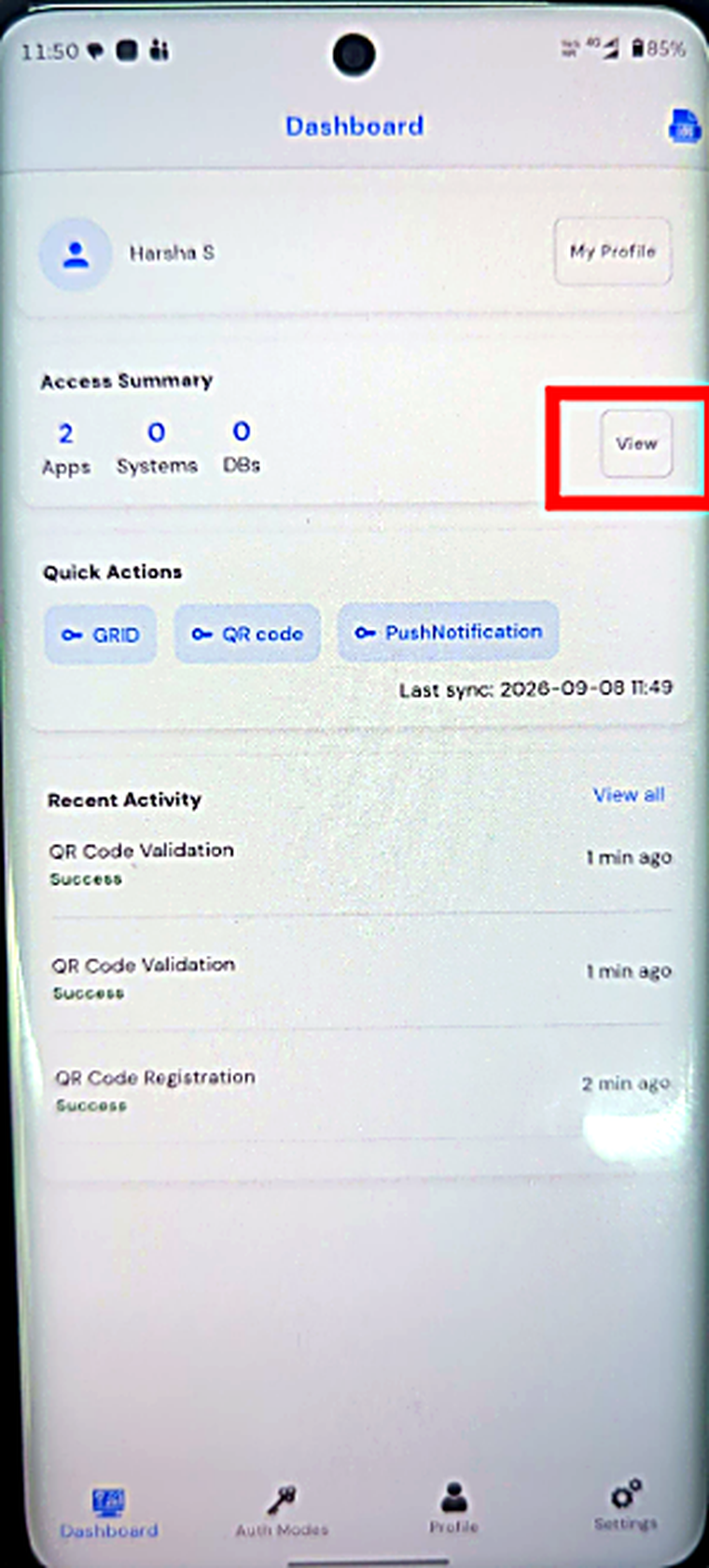
| Access Summary | How many applications, systems and databases you can reach |
| Quick Actions | Shortcuts to your registered sign-in methods — GRID, QR code, push |
| Last sync | When the app last refreshed its data from SECUREpass |
| Recent Activity | Your most recent authentications, newest first, each with its result |
**Last sync** is worth a glance when something looks out of date. If your access has changed and the app has not synced since, the summary is showing you the old picture.
Recent Activity is the short version — the three or four most recent events. **View all** opens the full log.
## Activity logs
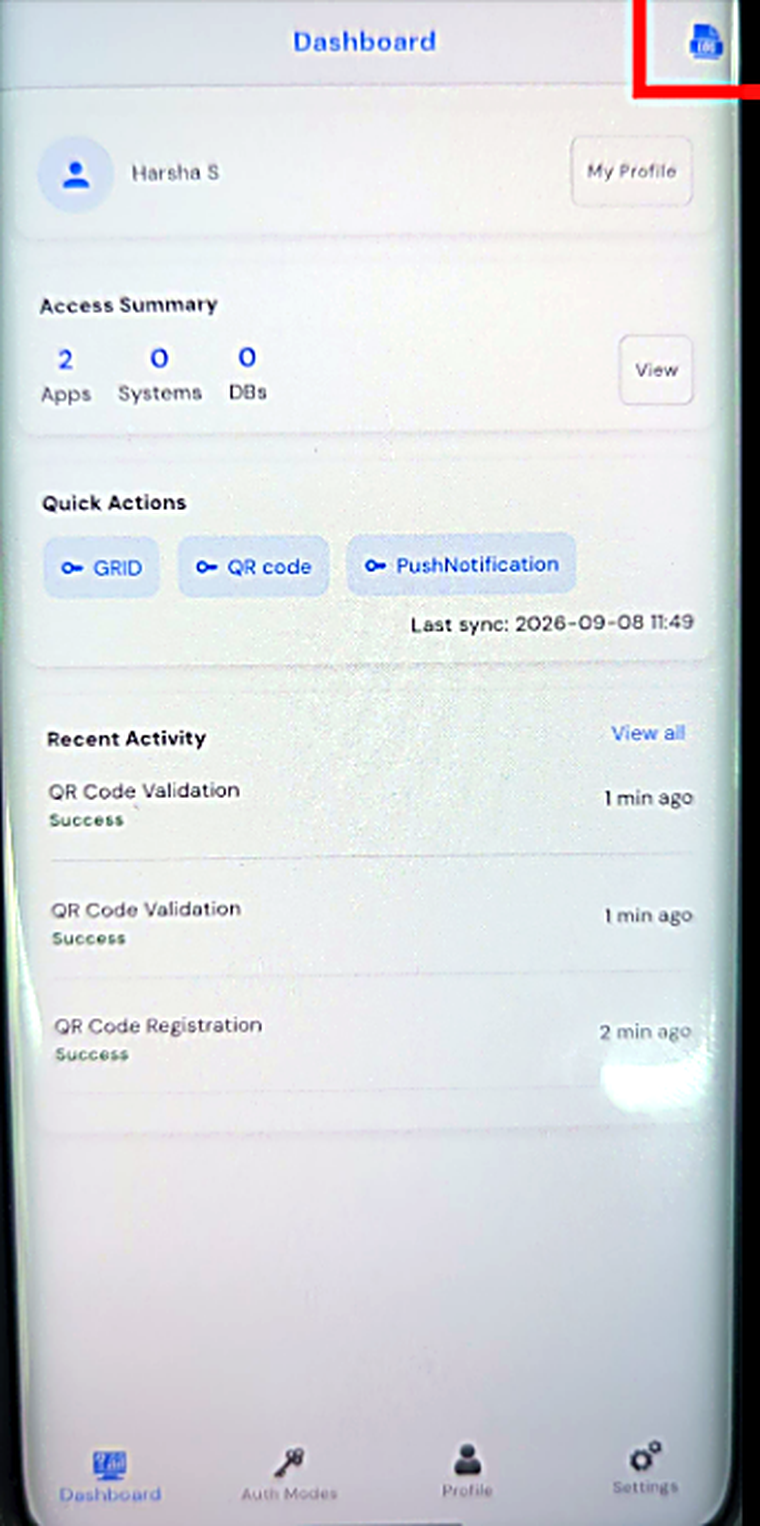
Select the log icon in the top right of the dashboard.
| Section | What it shows |
| --------------- | -------------------------------------------------------------------- |
| Access Summary | How many applications, systems and databases you can reach |
| Quick Actions | Shortcuts to your registered sign-in methods — GRID, QR code, push |
| Last sync | When the app last refreshed its data from SECUREpass |
| Recent Activity | Your most recent authentications, newest first, each with its result |
**Last sync** is worth a glance when something looks out of date. If your access has changed and the app has not synced since, the summary is showing you the old picture.
Recent Activity is the short version — the three or four most recent events. **View all** opens the full log.
## Activity logs
Select the log icon in the top right of the dashboard.
 The log lists everything the app has done for you — registrations, validations, approvals and rejections — with the date and whether each succeeded.
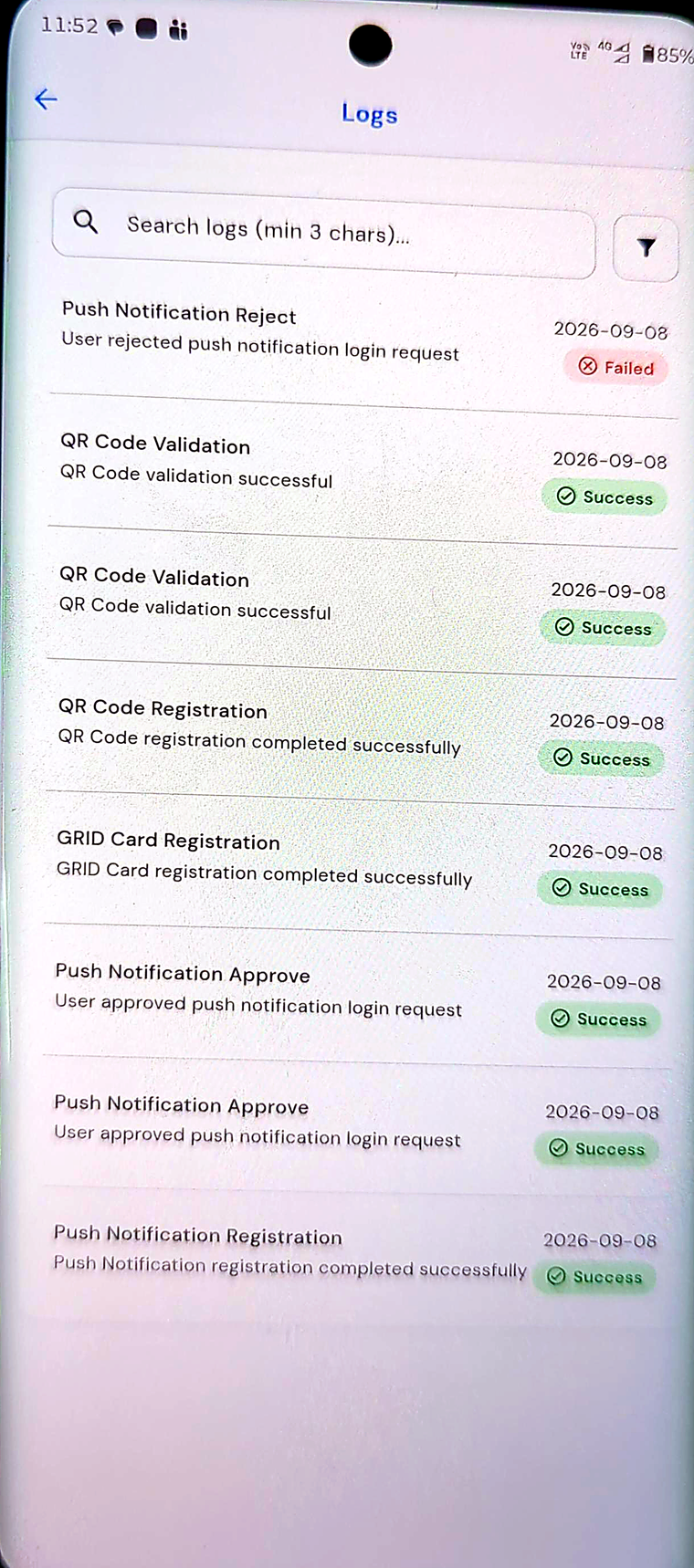 Each entry names the event, describes it in a line, and carries a **Success** or **Failed** badge. Search across the log with at least three characters, and use the filter to narrow it.
{% hint style="info" %}
This log is your own record of what the app did. Read it after anything unexpected — a **Push Notification Reject** you do not remember making means someone tried to sign in as you and the prompt reached your phone. Tell your IT team.
{% endhint %}
## Your profile
Select **Profile** in the bottom navigation.
Each entry names the event, describes it in a line, and carries a **Success** or **Failed** badge. Search across the log with at least three characters, and use the filter to narrow it.
{% hint style="info" %}
This log is your own record of what the app did. Read it after anything unexpected — a **Push Notification Reject** you do not remember making means someone tried to sign in as you and the prompt reached your phone. Tell your IT team.
{% endhint %}
## Your profile
Select **Profile** in the bottom navigation.
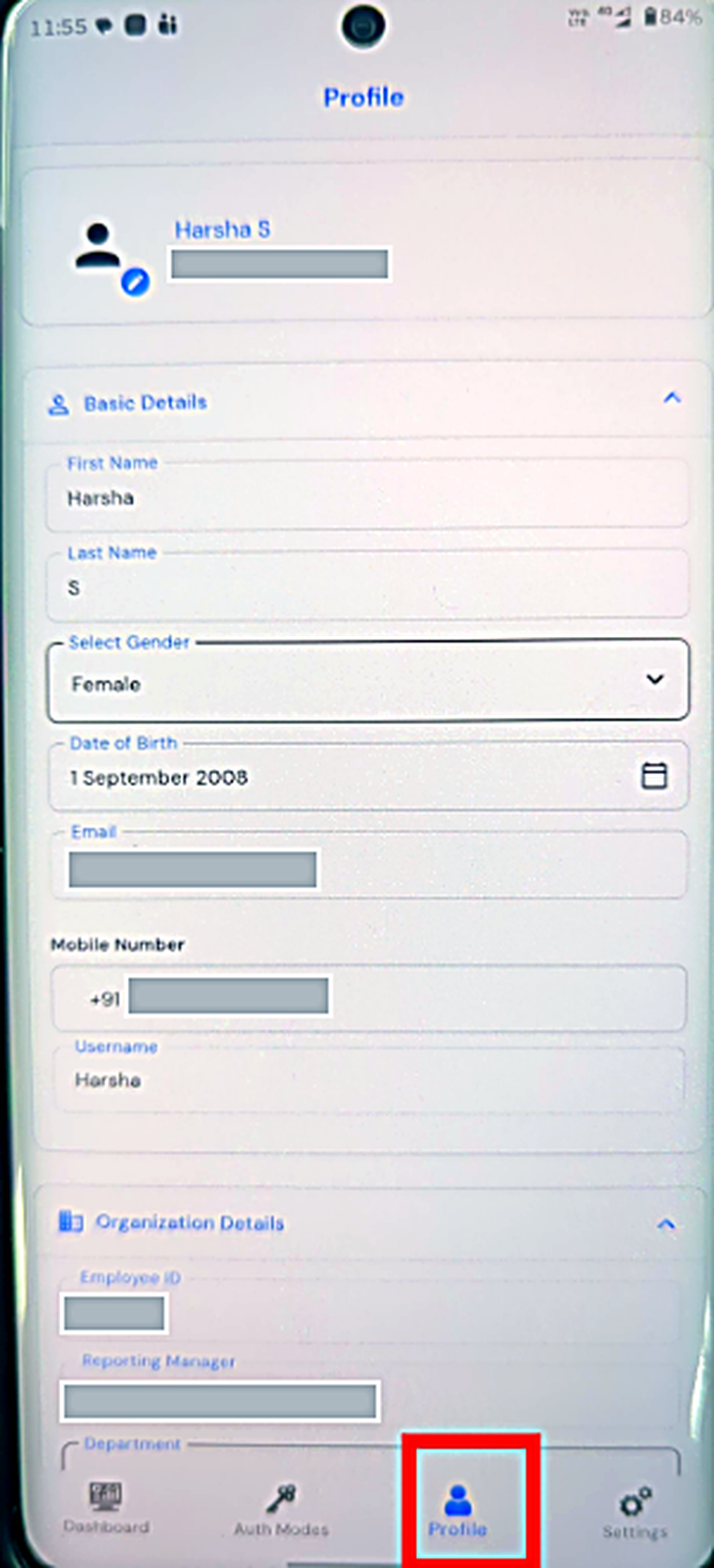 Profile is grouped into three sections.
**Basic Details** — first and last name, gender, date of birth, email, mobile number and username.
**Organization Details** — employee ID, reporting manager, department and sub-department.
Profile is grouped into three sections.
**Basic Details** — first and last name, gender, date of birth, email, mobile number and username.
**Organization Details** — employee ID, reporting manager, department and sub-department.
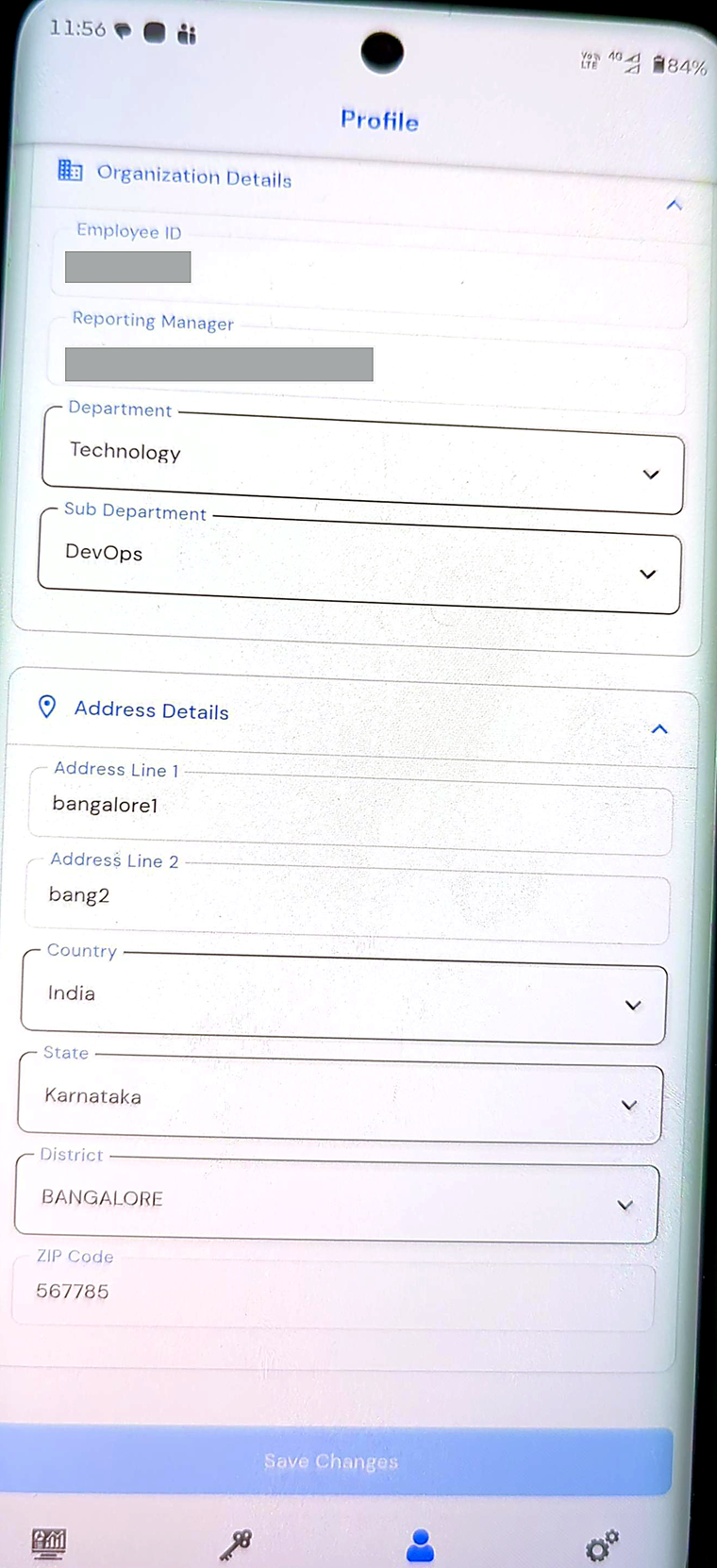 **Address Details** — address lines, country, state, district and postcode.
Change what you need and select **Save Changes**.
Some fields may be read-only. Those come from the directory or HR system your organisation syncs into SECUREpass, and they have to be corrected at the source rather than here — if you cannot edit something that is wrong, that is why.
{% hint style="warning" %}
Keep the mobile number current. It is where OTPs go when you fall back to mobile OTP, and an old number means an authentication route that silently fails.
{% endhint %}
## My Access
The **View** button on the dashboard's Access Summary opens the detail.
**Address Details** — address lines, country, state, district and postcode.
Change what you need and select **Save Changes**.
Some fields may be read-only. Those come from the directory or HR system your organisation syncs into SECUREpass, and they have to be corrected at the source rather than here — if you cannot edit something that is wrong, that is why.
{% hint style="warning" %}
Keep the mobile number current. It is where OTPs go when you fall back to mobile OTP, and an old number means an authentication route that silently fails.
{% endhint %}
## My Access
The **View** button on the dashboard's Access Summary opens the detail.
 **My Access — All Resources** lists what you can reach, and the role you hold in each.
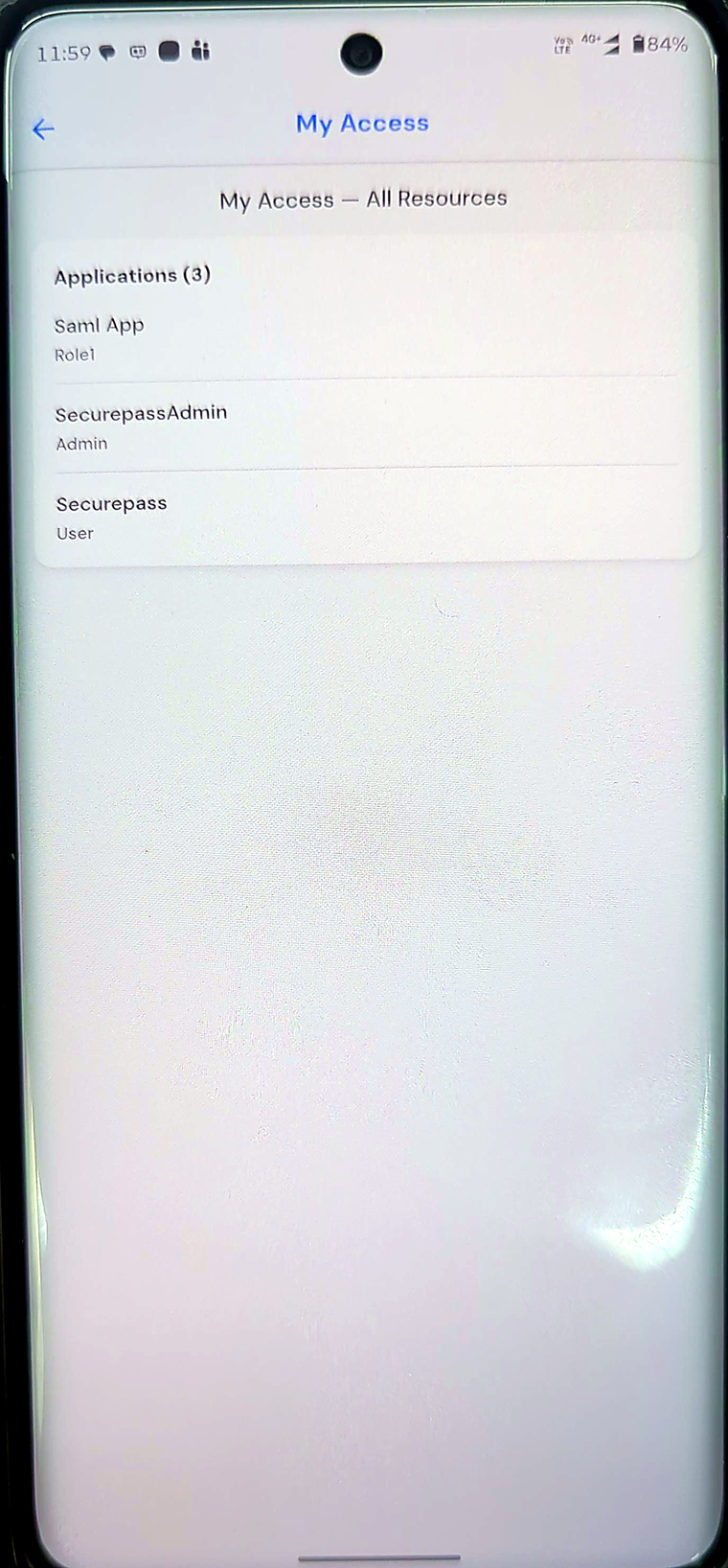 Applications are listed by name with your role beneath — Admin, User, and so on. Systems and databases appear the same way when you have them.
This is the answer to "what am I actually allowed to use?", and it is worth checking after a role change. If something you need is missing, request it from the Self-Service Portal rather than asking for a shared login.
Applications are listed by name with your role beneath — Admin, User, and so on. Systems and databases appear the same way when you have them.
This is the answer to "what am I actually allowed to use?", and it is worth checking after a role change. If something you need is missing, request it from the Self-Service Portal rather than asking for a shared login.